All applications

QuotesPro plan

From signed quote to invoice, without retyping a thing

Write a clear quote, send it with its approval link and let your client accept it online. Once signed, it becomes an invoice in one click, with the same lines and the same client.

Create my account

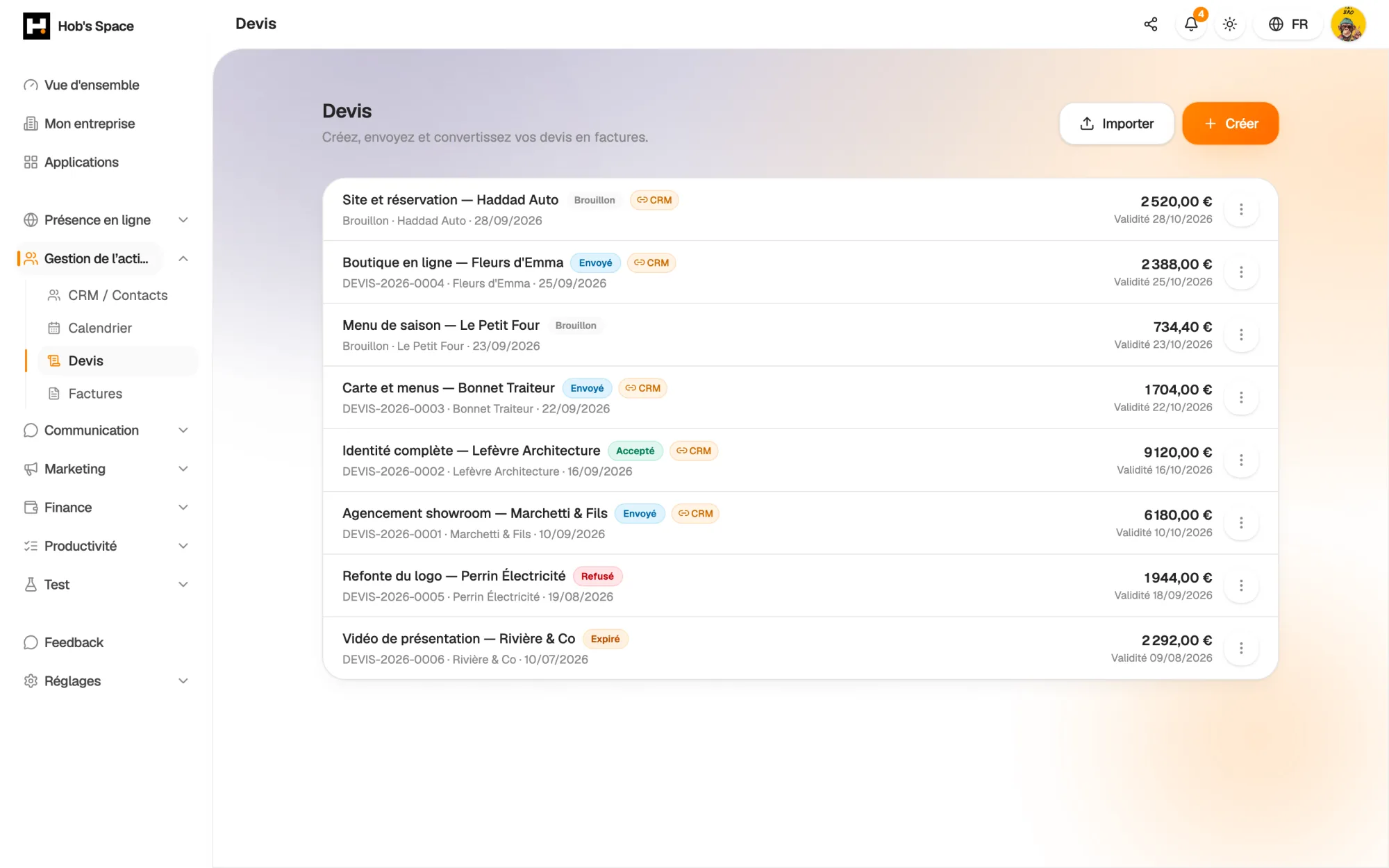
Your quotes, their status and their client at a glance

Your quotes, their status and their client at a glance

Drafting

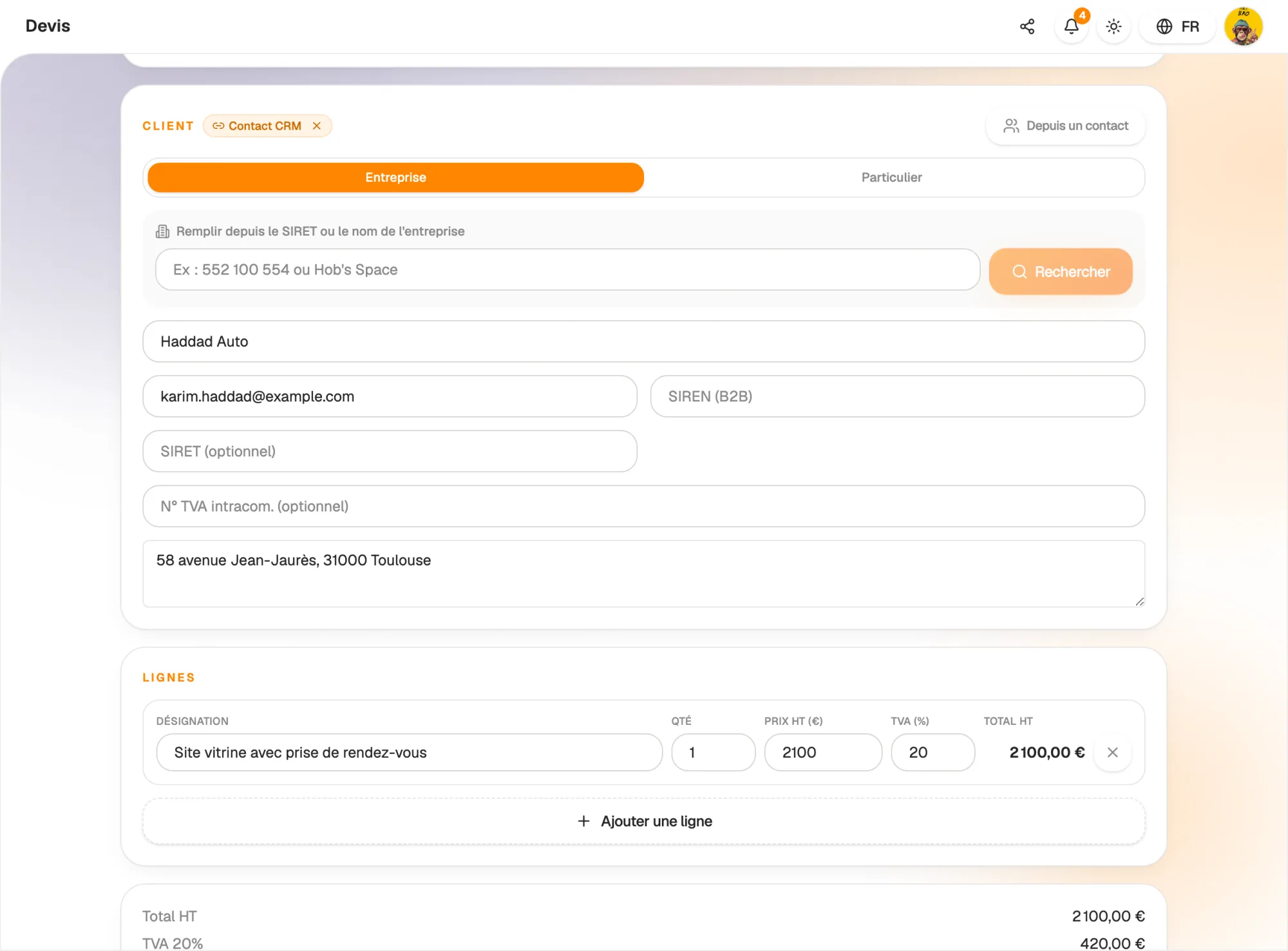
A clean quote, ready in minutes

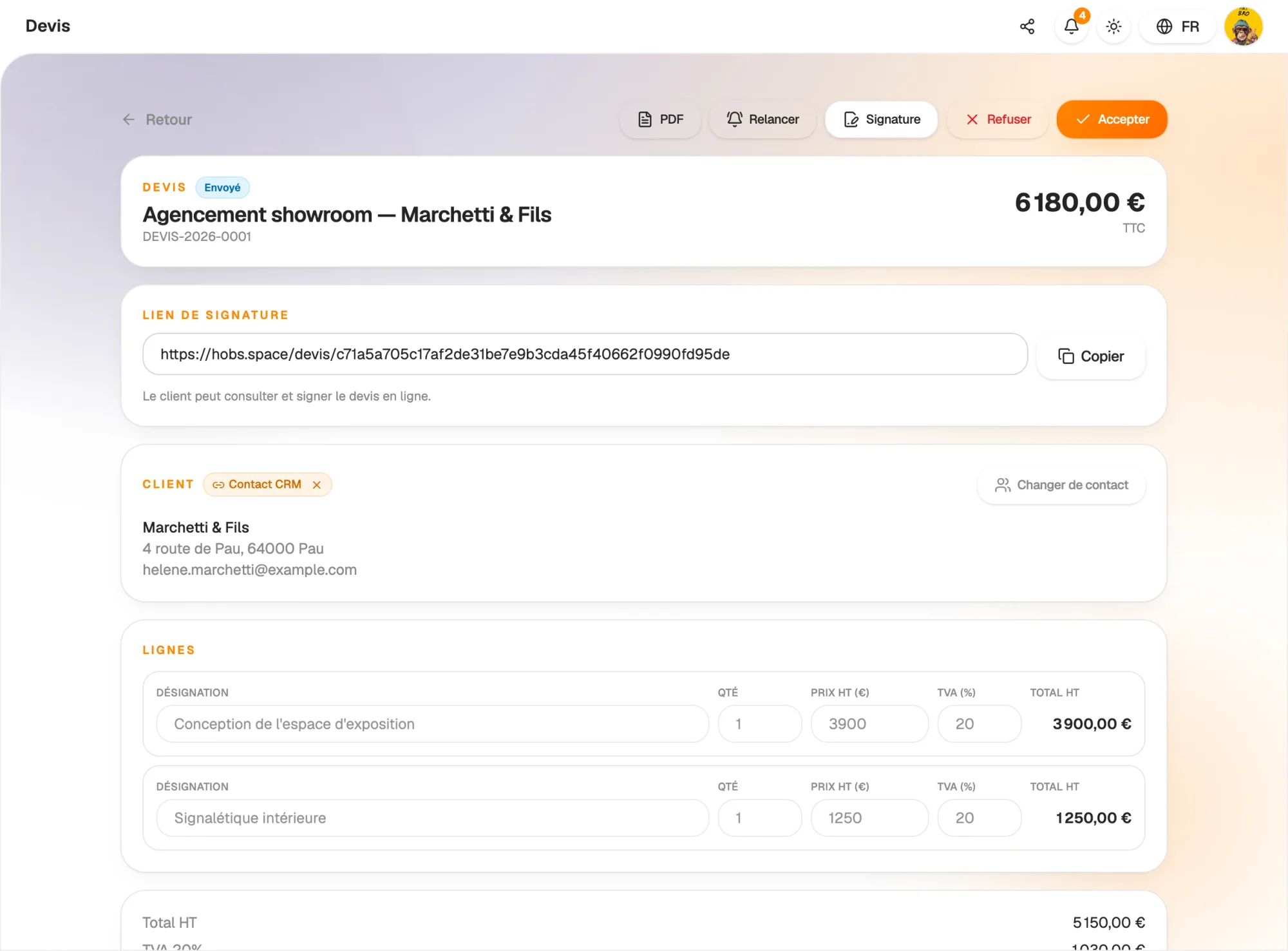
Pick a contact from your CRM or search for a company by name or registration number: its details fill in. Add your lines (description, quantity, unit price excl. VAT, VAT rate) and totals are calculated, with the VAT breakdown per rate.

Give your quote an internal name so you can find it easily, and add notes and your client's purchase order reference. While it is a draft, you can edit it freely: it has no number yet.

  • Client pre-filled from the CRM or the company directory
  • Several VAT rates on one quote
  • Client order reference shown on the document
A clean quote, ready in minutes

Sending

Numbered, dated, sent by email

When the quote is ready, finalise it: it gets a chronological number such as DEVIS-2026-0001 and a validity date, set to 30 days by default and editable. Your issuer details are frozen at that point.

Send it from Hob's Space: your client receives an email with the PDF attached and a link to view and sign the quote online. The signing link can also be copied from the quote page.

  • Chronological numbering assigned on finalisation
  • Editable validity date, 30 days by default
  • Email with the PDF attached and an approval link
Numbered, dated, sent by email

Online acceptance

Your client says yes without printing or scanning

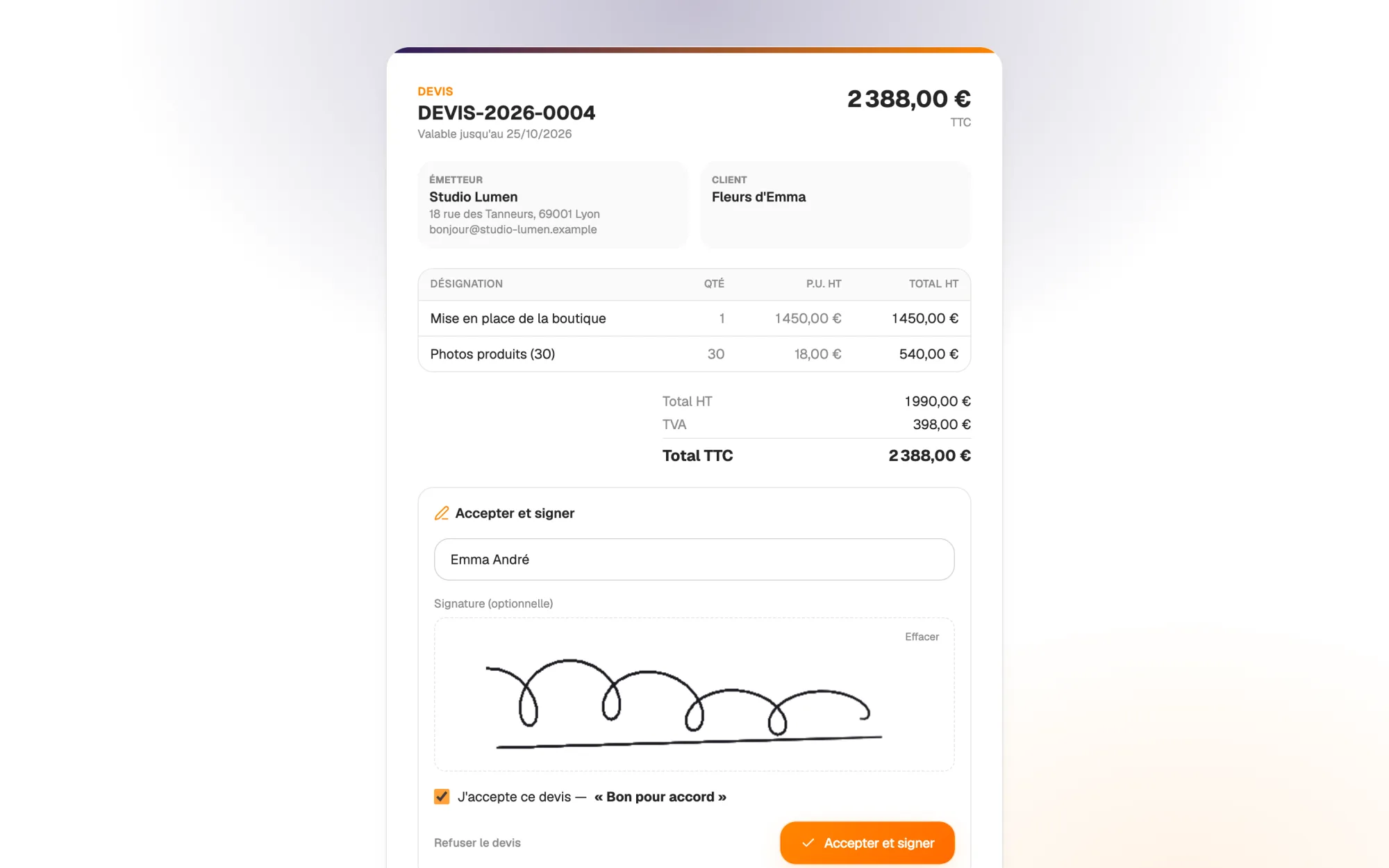
The link opens a public page presenting the quote: issuer, lines, totals excl. and incl. VAT, validity. To accept, your client enters their name, ticks “Approved” and can draw their signature. The date and time are recorded.

They can also decline and give a reason. Either way, you get a notification in Hob's Space and the quote status updates on its own. A quote past its validity date can no longer be accepted.

  • Acceptance with name, “Approved” mention and drawn signature
  • Decline option with a reason
  • Notification as soon as the client answers
Your client says yes without printing or scanning

Reminders

An unanswered quote does not get forgotten

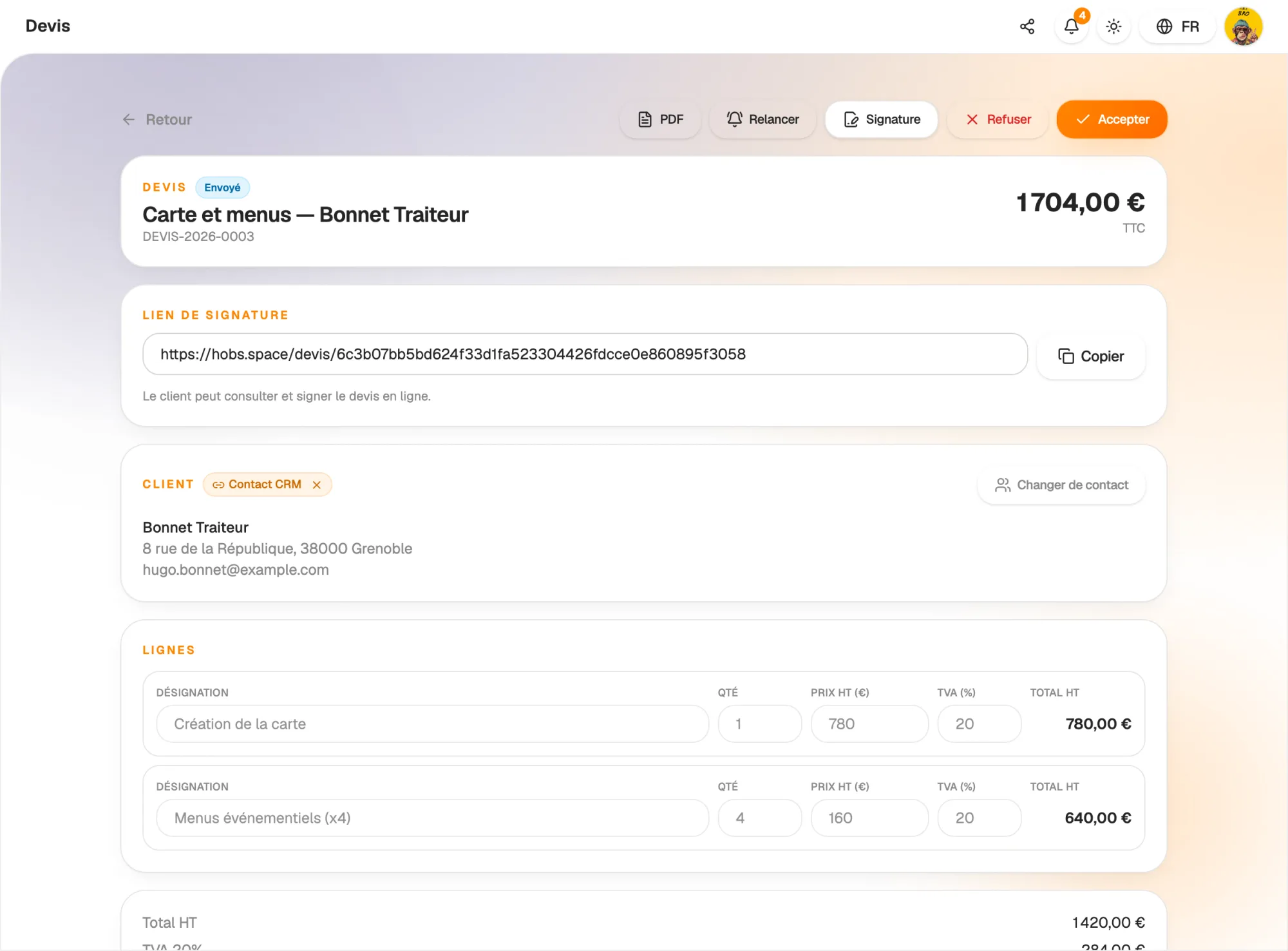
Remind a client in one click from a sent quote: they receive a reminder with the PDF and the approval link. If your client answers by phone, mark the quote as accepted or declined yourself.

Hob's Space also automatically reminds clients about sent quotes that expire within three days, at most once a week. Expired quotes switch to “Expired” without you doing anything.

  • One-click manual reminder
  • Automatic reminder before expiry
  • Statuses: draft, sent, accepted, declined, expired
An unanswered quote does not get forgotten

Invoicing

An accepted quote becomes an invoice in one click

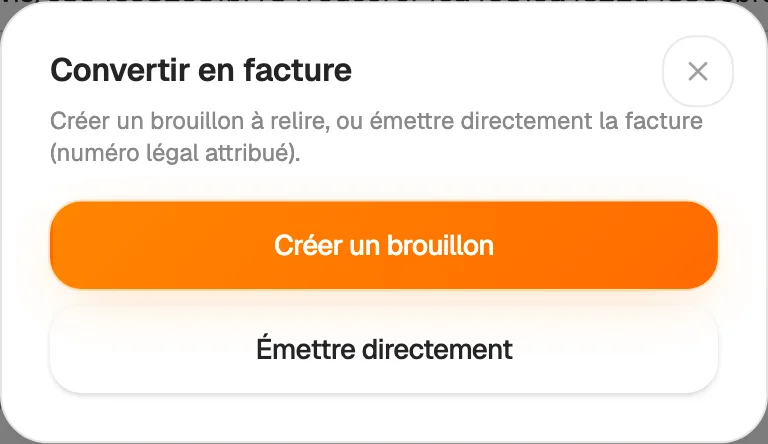
On an accepted quote, click “Convert to invoice”. Choose to create a draft to review or to issue the invoice straight away with its legal number. The client, lines, notes and order reference are carried over.

The quote and the invoice stay linked: a “View invoice” button appears on the quote, and a quote that has already been converted cannot be converted again. No more double entry, no more forgotten invoices.

  • Convert to a draft or an issued invoice
  • Client, lines and reference carried over as they are
  • Quote and invoice linked, no double conversion
An accepted quote becomes an invoice in one click

And also…

  • AI import

    Drop an existing quote as a PDF or photo: AI turns it into an editable draft.

  • Quote PDF

    Download or preview the PDF, with its validity date and “Approved” box.

  • E-signature

    Prepare a signature request with a certificate straight from the quote.

  • Contact record

    A quote linked to a contact appears on their CRM record, with their invoices.

  • VAT under control

    Your invoice VAT regime also applies to your quotes, broken down by rate.

  • Automation

    An accepted quote can trigger a scenario in the Automation app.

  • Tracked in figures

    Pending quotes, accepted quotes to invoice and acceptance rate in your Statistics.

  • Several companies

    Issue quotes for each of your companies, each with its own numbering.

Works with

Your quotes share the clients, VAT and numbering of your invoices. An accepted quote becomes an invoice, and its amounts feed your financial statistics.

Frequently asked questions

Get started today.

Create your account and publish your first page in minutes.

Create my account