All applications

StatisticsPro plan

Your key figures, without opening a spreadsheet

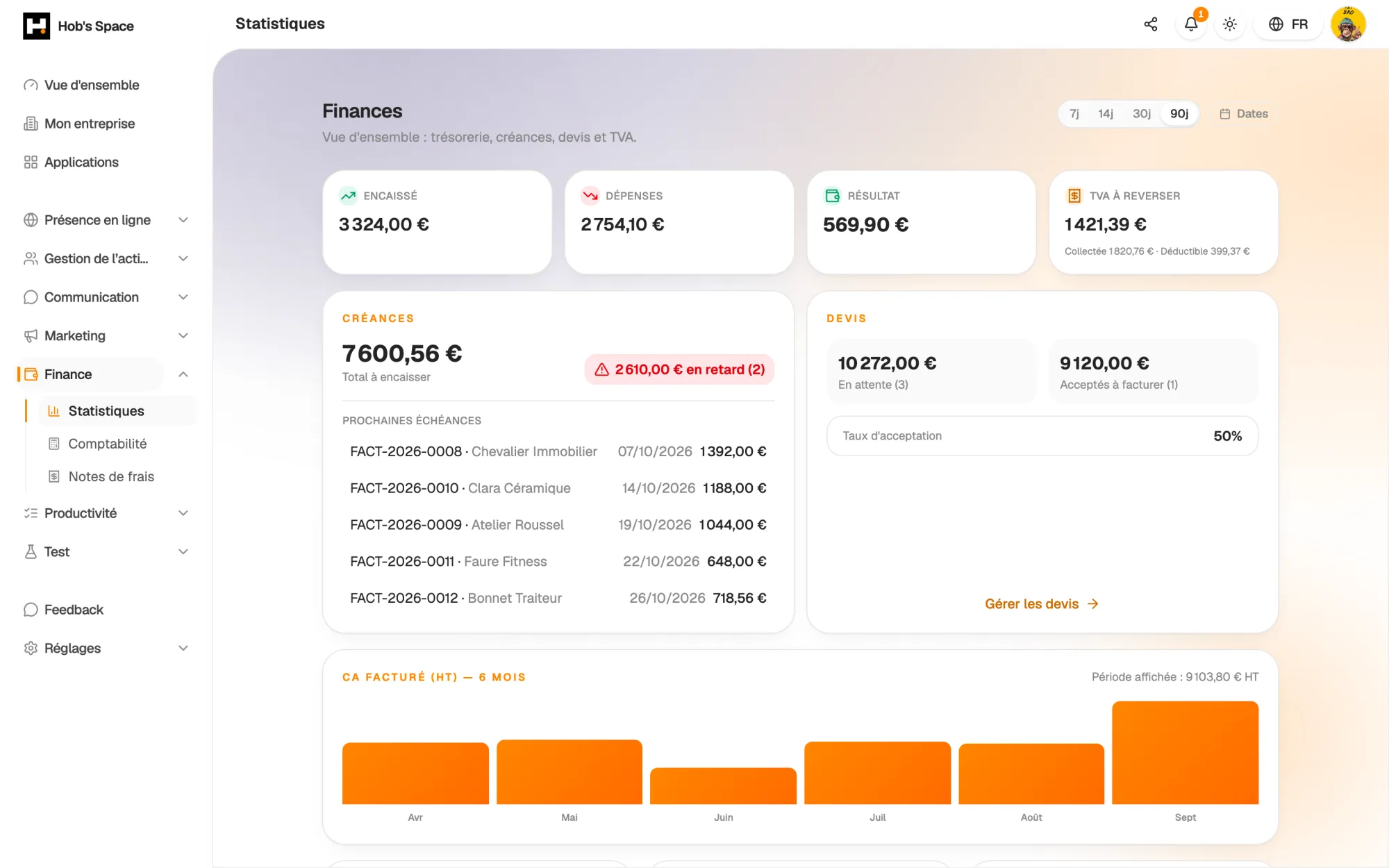
Financial Statistics reads your invoices, quotes and expenses to show you what came in, what went out and what is still to be collected. Pick a period and the amounts update.

Create my account

Cash, receivables, quotes and VAT over the chosen period

Cash, receivables, quotes and VAT over the chosen period

Cash

What came in, what went out, what is left

Four indicators open the dashboard: money collected, expenses, result and VAT to pay. Money collected adds up the payments recorded on your invoices during the period. Expenses are the ones entered in Accounting.

The result is the difference between the two. Nothing to re-enter: everything comes from documents you already create in Hob's Space. A credit note is deducted, and a draft is never counted.

  • Money collected based on your invoice payments
  • Expenses taken from Accounting
  • The period's result front and centre
What came in, what went out, what is left

Receivables

Know who owes you what, and since when

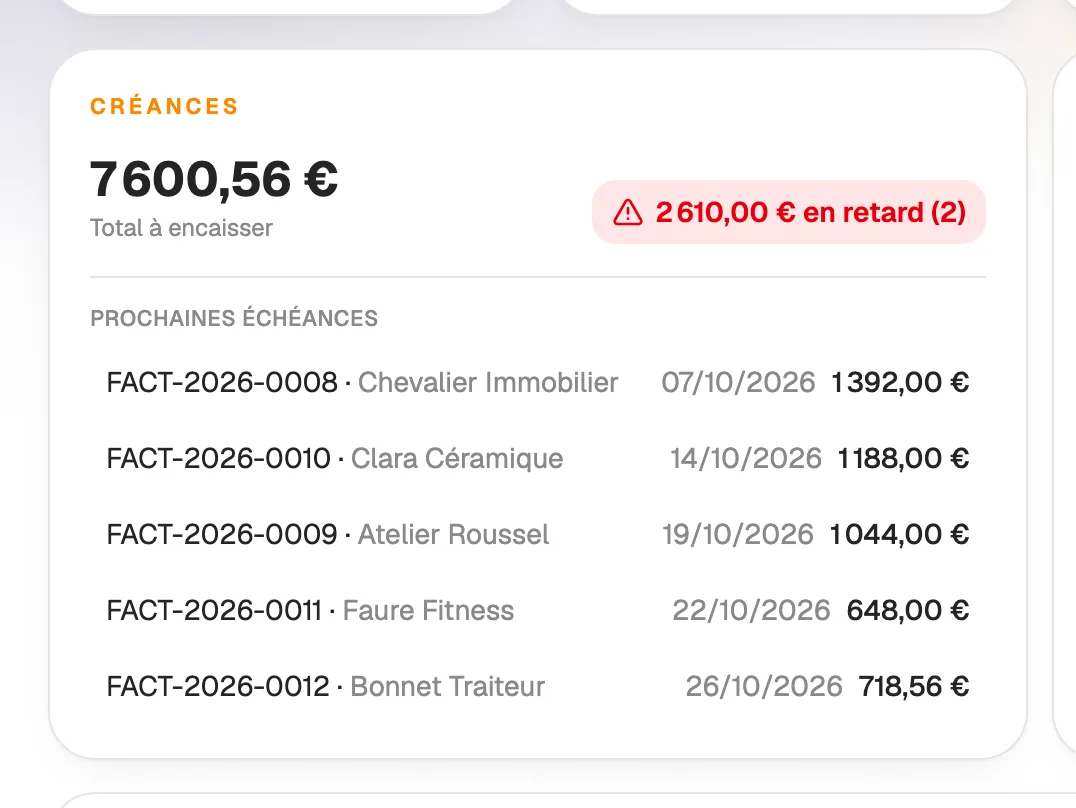
The Receivables block shows the total still to be collected on your issued invoices. If due dates have passed, the overdue amount and the number of invoices concerned are shown in red.

Just below are the next five due dates: invoice number, client, date and amount due. One click opens the invoice so you can record a payment or remind the client.

  • An always up-to-date total to collect
  • Overdue amount and number of overdue invoices
  • The next five due dates, clickable
Know who owes you what, and since when

Quotes

Your upcoming revenue

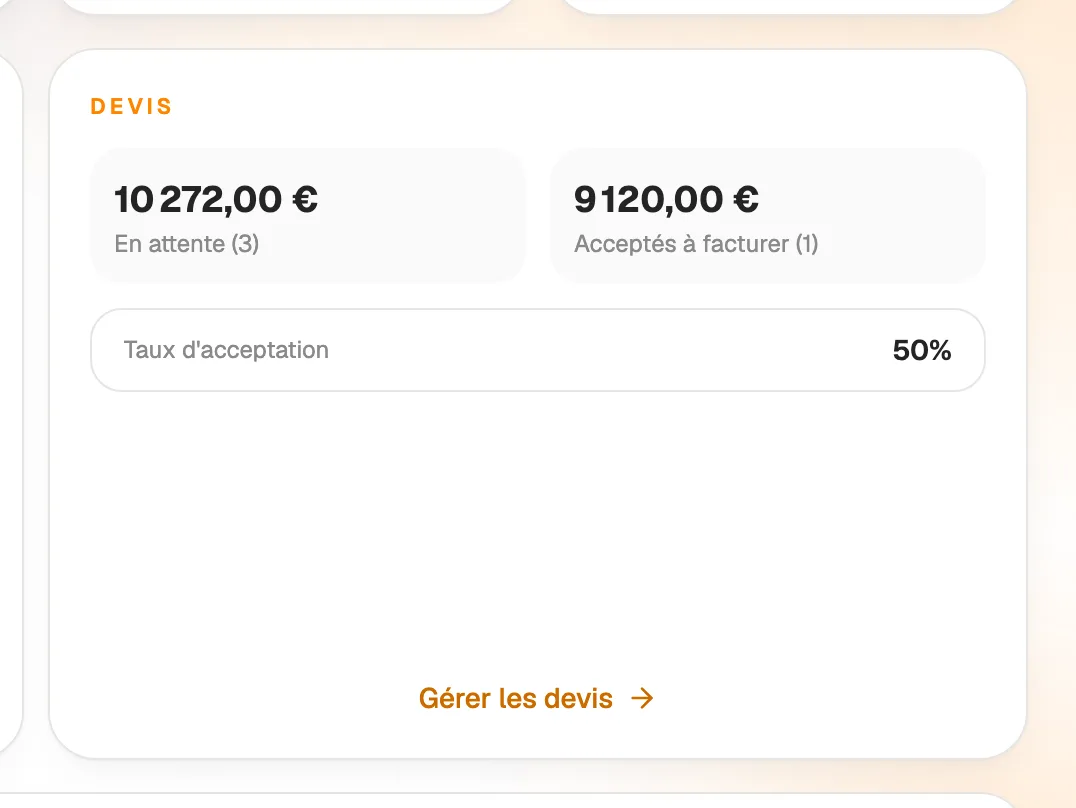
Quotes that have been sent and are still valid appear as pending, with their total amount. Accepted quotes not yet converted into an invoice are shown separately: this is signed work still to be invoiced.

The acceptance rate compares accepted quotes with rejected ones. You can see whether your proposals win clients, and the “Manage quotes” button takes you straight to the list.

  • Amount and number of pending quotes
  • Accepted quotes still to be invoiced
  • Acceptance rate of your quotes
Your upcoming revenue

VAT

VAT to pay, calculated for you

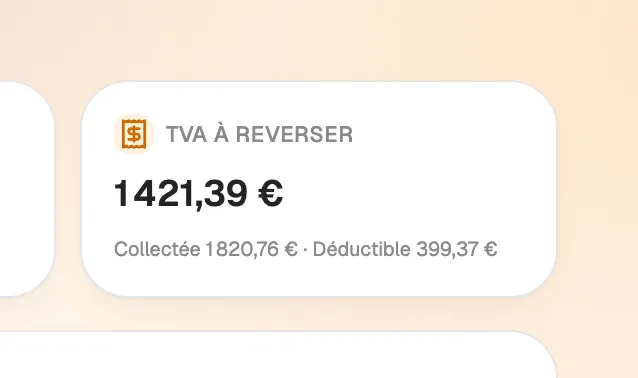
Output VAT comes from invoices issued during the period, minus credit notes. Input VAT comes from your expenses. The difference gives the VAT to pay, shown with its breakdown.

You prepare your return with a reliable estimate, without adding up invoices by hand. For line-by-line detail, Accounting offers a CSV export.

  • Output VAT on issued invoices
  • Input VAT on expenses
  • VAT to pay for the period
VAT to pay, calculated for you

Trend

Six months of revenue at a glance

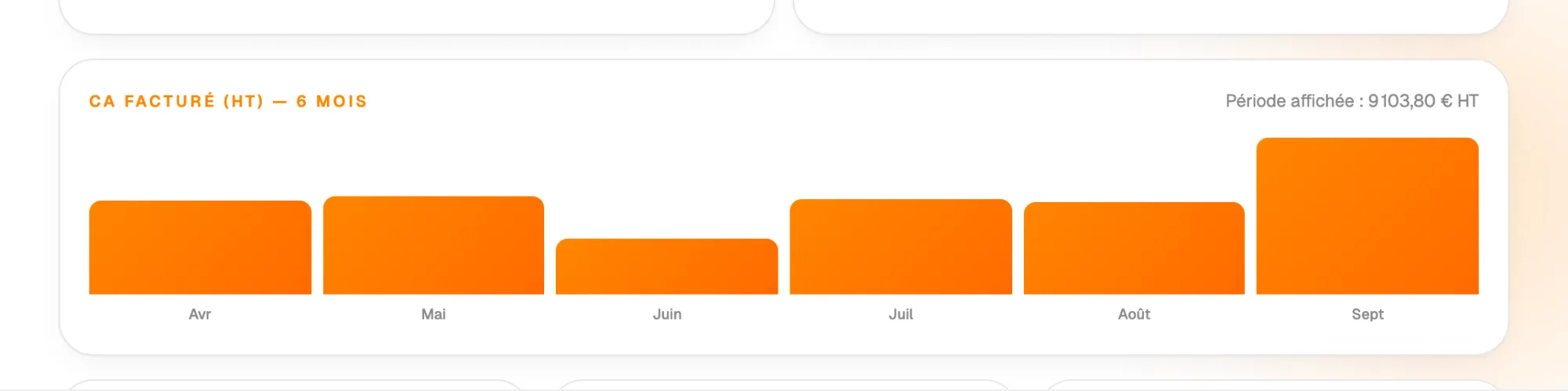
A bar chart shows invoiced revenue excluding VAT over the last six months, current month included. You spot a quiet month or a busy season straight away.

Above the chart is the total invoiced excl. VAT for the selected period. At the bottom of the page, three shortcuts lead to Quotes, Invoices and Accounting, with the number of documents in each.

  • Invoiced revenue excl. VAT over a rolling six months
  • Total excl. VAT for the displayed period
  • Shortcuts to Quotes, Invoices and Accounting
Six months of revenue at a glance

And also…

  • Any period

    7, 14, 30 or 90 days, or specific dates: every amount follows.

  • No data entry

    Figures come from your existing invoices, quotes and expenses.

  • Credit notes deducted

    An issued credit note is subtracted from revenue and output VAT.

  • Late payments visible

    Invoices past their due date are flagged with their amount.

  • Acceptance rate

    The share of accepted quotes among those that received an answer.

  • Expense reports

    An approved expense report becomes an expense and counts towards the result.

  • Several companies

    View each company on its own or a consolidated view of all of them.

  • Direct access

    A due date or a shortcut opens the related document or app.

Works with

Financial Statistics stores nothing extra: it reads your invoices, quotes and accounting. Every payment you record and every expense you enter shows up here.

Frequently asked questions

Get started today.

Create your account and publish your first page in minutes.

Create my account